Manage Users
Manage Users
Use the Account Menu to open the Manage Users page in a new tab.
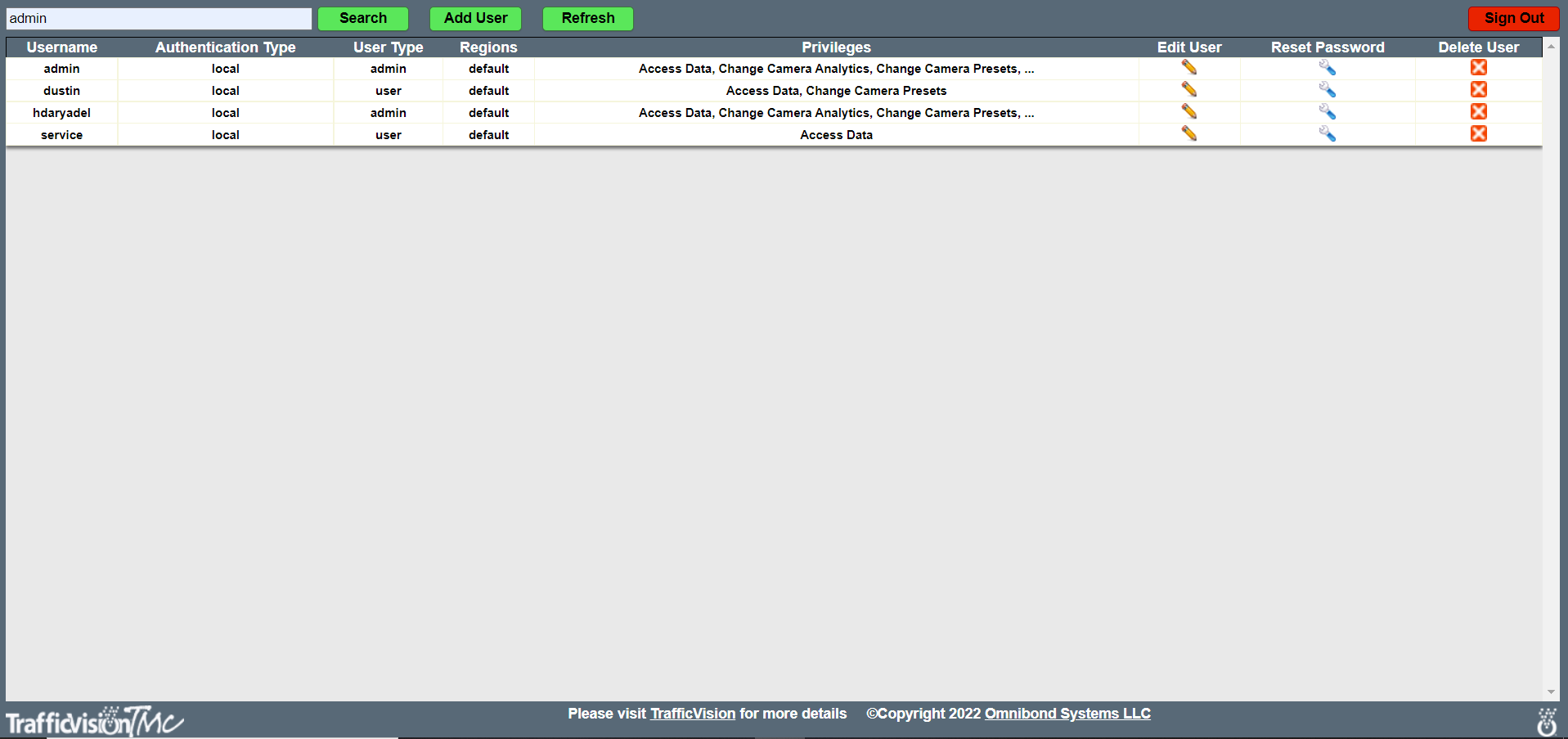
From here an account with Administrative privileges can:
- Add a new account
- Edit an existing account
- Reset Password
- Delete an existing account
Adding A New Account
To add a new account - select the “Add User” button at the top of the page
This will open a new pane which will allow for user creation
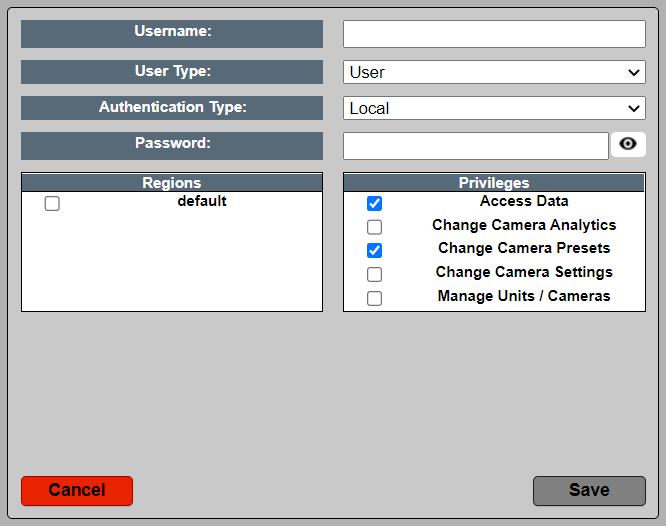
| Username | User Type | Authentication Type | Password | Regions | Privileges |
|---|---|---|---|---|---|
| A unique username is needed for each account | Select the User Type Admin: Has permissions to the entire application User: Has limited access to the application | Select the Authentication Type Local: Uses TrafficVision for authentication External: Uses an external application for authentication LDAP: Uses LDAP for authentication | A unique password is needed for each account | Select the regions the account will be able to view
Regions are created when adding unique processor nodes to the system. For more information please contact Support@TrafficVision.com
|
Select what privileges the account will have |
Editing An Account
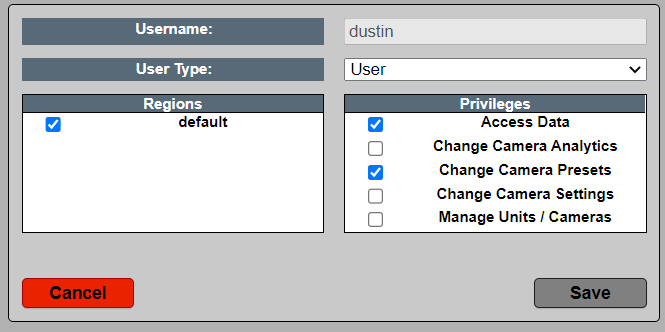
To edit an account select the Edit User icon. From here an Administrative account can change the following for another accunt:
- User Type
- Regions
- Privileges
Reset Password
To reset an accounts password select the Reset Password icon.
Delete Account
To delete an account select the Delete User icon.