Camera Groups
Camera Groups
To open the Camera Groups creation page use the Accout Menu dropdown.
Camera Groups are lists of selected camera streams that a user creates. Camera Groups are used in the Overview Tab to view specific groups of cameras, in the Email Notifications to alert for incidents on specific Camera Groups, and in Incident Reports to create dashboards and monthly reports for specific Camera Groups.

Create a Camera Group
To create a new Camera Group:
- Select the + icon on the top right
- Name the New Group

- A new pane will appear with the title of the new group. Select the small + icon next to the Camera Group name to select from a list of all cameras to add to the new Camera Group.
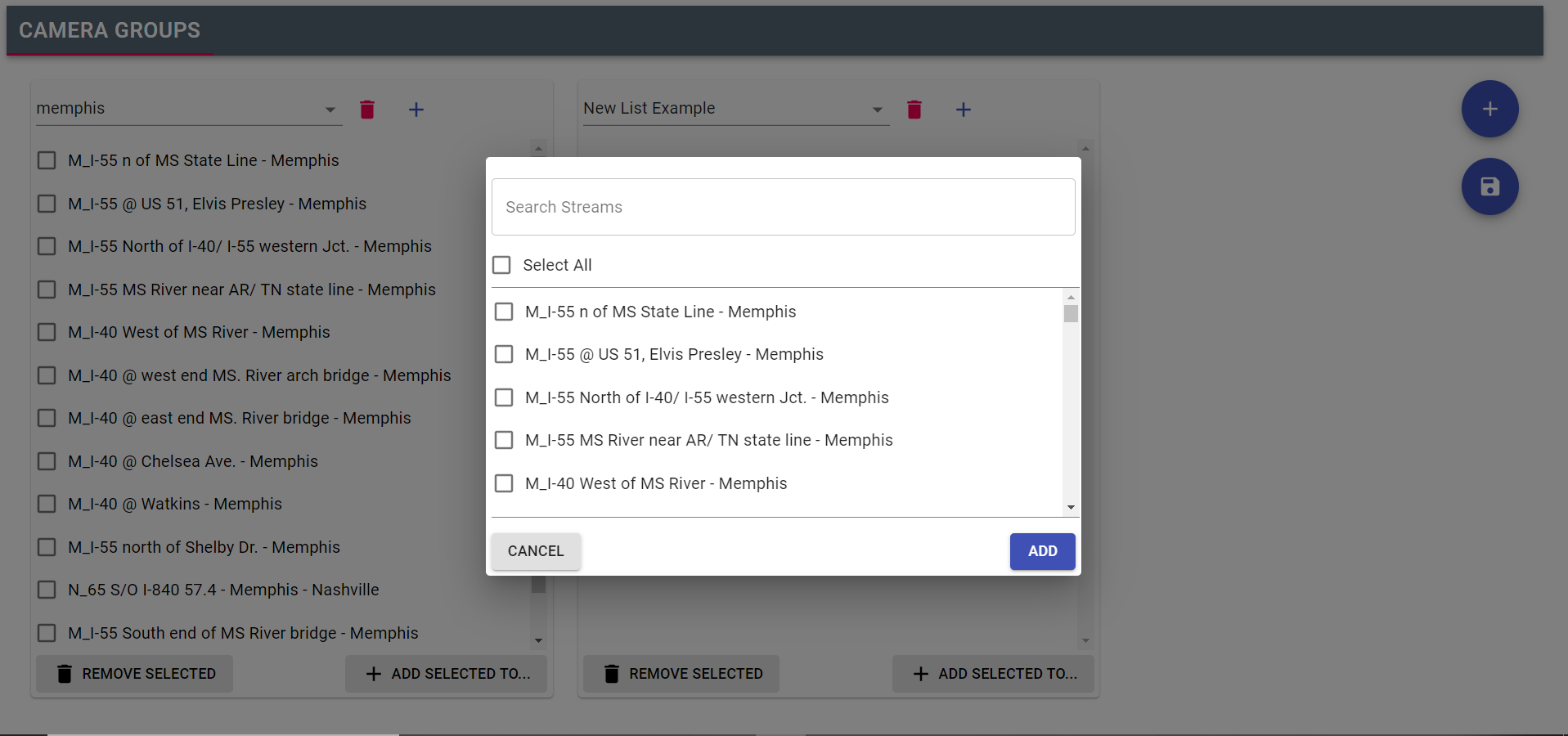
- Select the cameras to add to the new Camera Group and click the ADD button.
- When your Camera Group is complete, select the SAVE icon on the top right of the screen.
Edit a Camera Group
To edit a Camera Group:
- Select the Camera Group from the dropdown in the Camera Group pane
- Select the + icon next to the Camera Group name
- Edit the cameras in the Camera Group
- Select the SAVE icon
Delete a Camera Group
To delete a Camera Group:
- Select the Camera Group from the dropdown in the Camera Group pane
- Select the delete (Trash Can) icon next to the Camera Group name
- Select the SAVE icon