Opening the Web Application
What You Need before Opening the TMC Web Application
When you open the TMC Web Application the first time, you will need:
- The network address of the application
- Your user name
- The password for your user name
About the Network Address
All users enter a network address into a Web browser’s address line to access the TMC Web Application.
The network address is the IP address of the TMC turnkey appliance or Virtual Machine system. If you don’t know the IP address, ask the TMC system owner or administrator.
The full network address will be:
https://ip_address
Example:
If the TMC turnkey appliance or Virtual Machine system IP address is 135.127.148.216, your network address is:
https://130.127.148.216
About Your User Name and Password
If you don’t know your user name and password, ask the TMC Web Application administrator. Your user name may be the administrator user name, depending on the administrator’s security philosophy for the TMC Web Application.
Your user name will give you access to one of two possible account types: admin or user.
Steps for Opening the TMC Web Application
To open the TMC Web Application:
-
Enter the network address for the TMC Web Application host system in a web browser.
To determine your network address, see the previous section. For best performance, use the latest version of Google Chrome or Mozilla FireFox, the two Web browsers fully supported by TrafficVision.
-
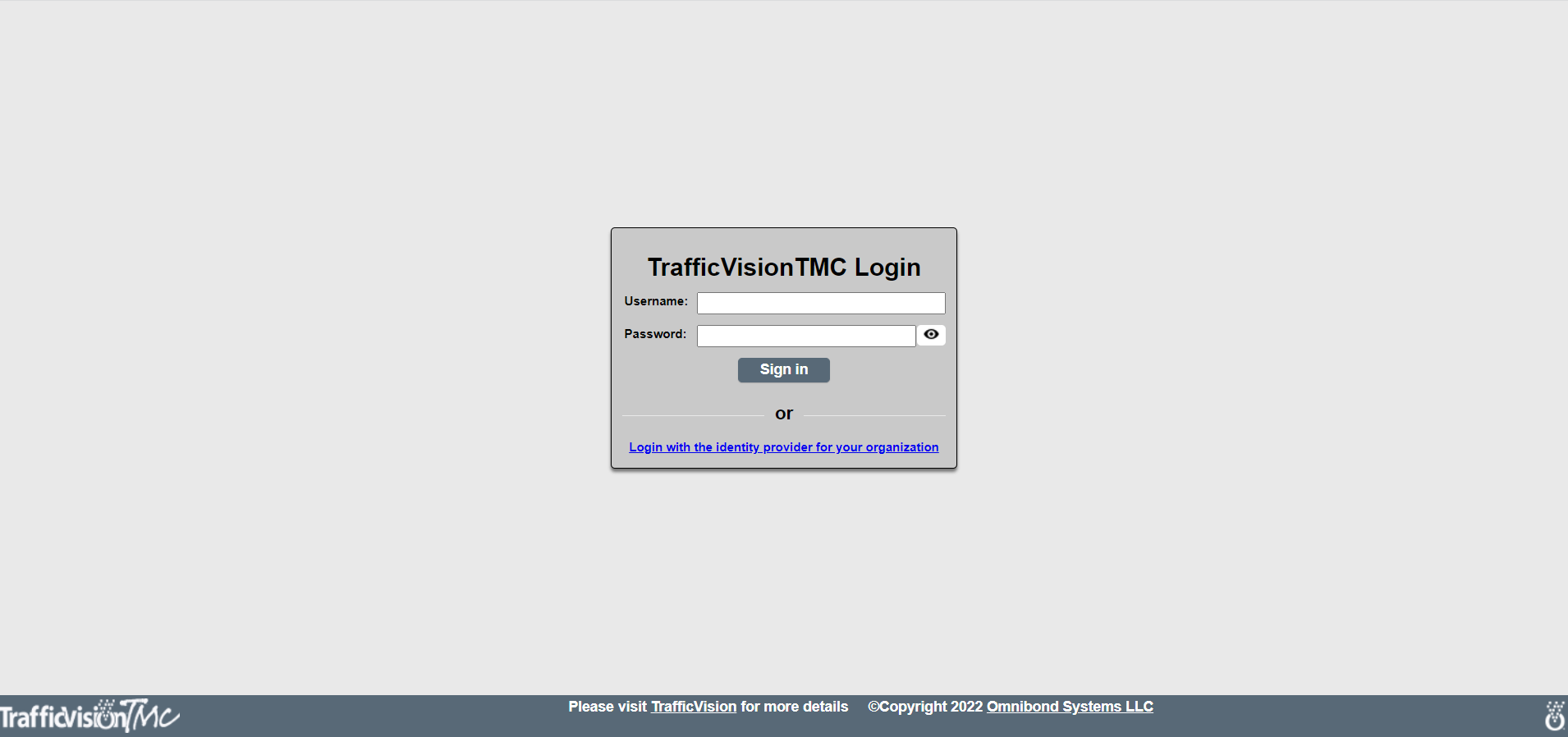
A login page will open. Enter your user name and password where prompted.
The TMC Web Application opens.
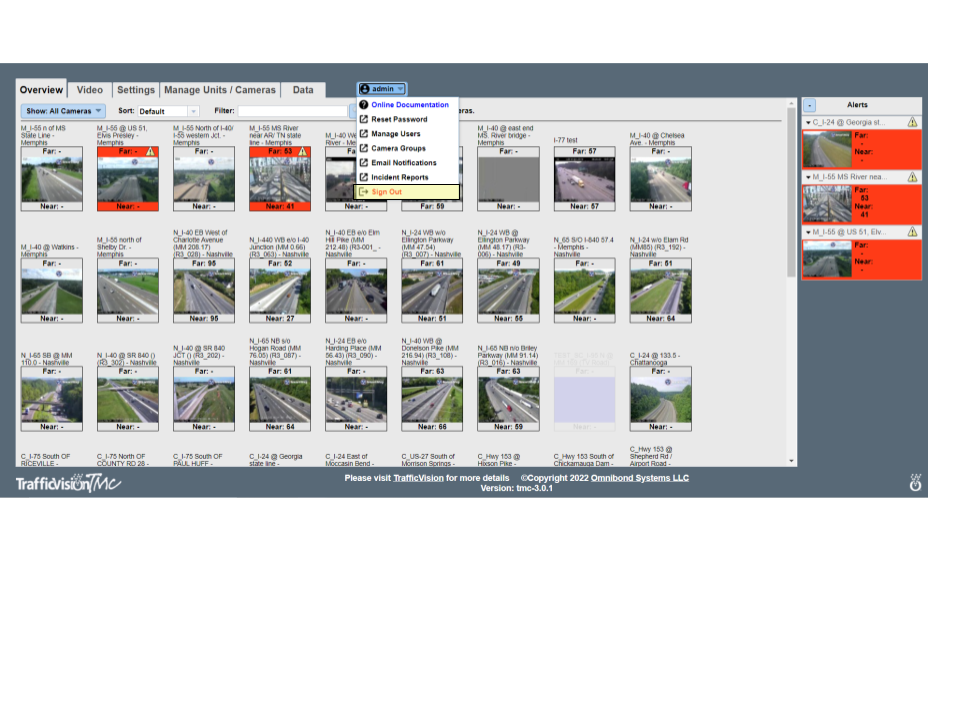
The Overview tab displays by default. From this home page, users can see all cameras connected to the TMC Web Application.
Passwords are case-sensitive; user names are not.
If this is the first time you have opened the Web Application, you may not see any connected cameras in the Overview tab.
Tabs are discussed in more detail in the next two topics.
How to Log out of the TMC Web Application
To log out of the system open the user dropdown menu on the main page and select “Sign Off”