Recipient Groups
Recipient Groups
Email Notifications need a named list of email addresses to send to. This list is created under Recipient Groups. Use Recipient Groups page to add, edit, and delete lists of email addresses.
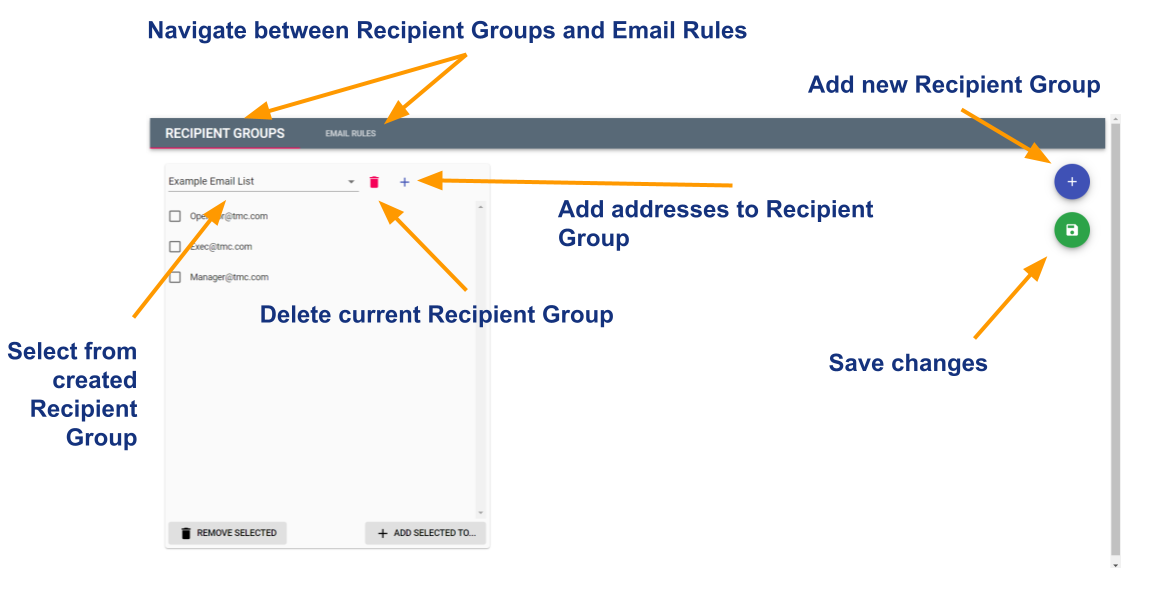
To add a Recipient Group:
- Select the + icon on the top right of the screen
- A pane will open asking for a New List Name - name the new Ricipient Group
- Naming the new group will open a new pane - select the + button inside the pane to add email addresses
- Once all email addresses are added to the Recipient Group press the SAVE icon on the top right of the screen to save changes
To edit a Recipient Group:
- Use the dropdown menu to select from pre-created Recipient Groups
- To add a new email to the group press the + icon inside the pane
- To remove an email from the Recipient Group select the email and then press the Remove Selected button at the bottom of the pane
- To add an email to a seperate Recipient Group select the email and press the Add Sellected To… button on the bottom of the pane
- A pane will open that allows to either add the name to an existing Recipient Group or create a new one
- Once edited remember to press the SAVE icon at the top right of the screen
To delete a Recipient Group:
- Use the dropdown menu to select from pre-created Recipient Groups
- Press the DELETE icon next to the Recipient Groups name
- Once deleted remember to press the SAVE icon at the top right of the screen