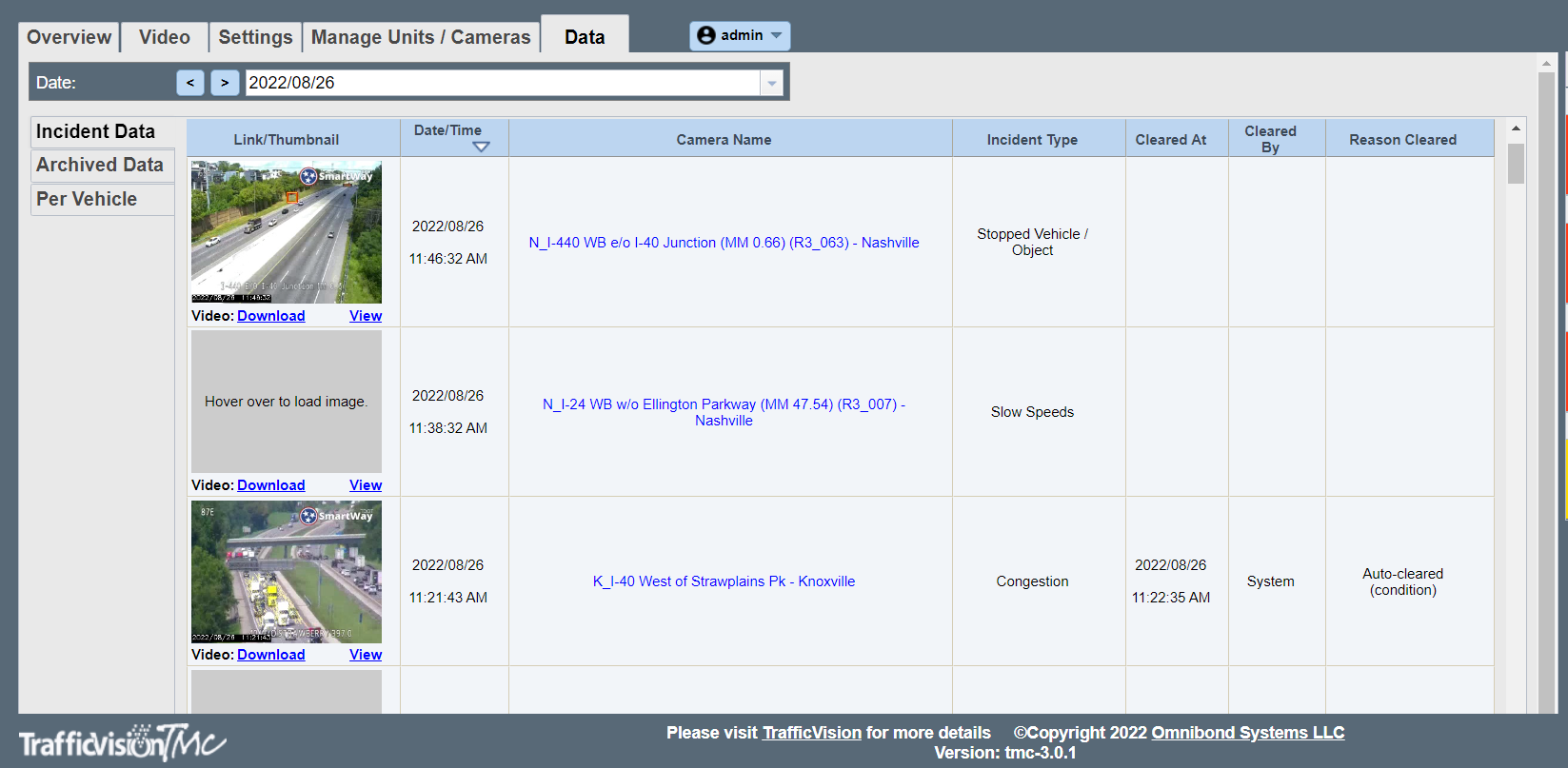
Incident Data
Incident Data
After selecting a date the user is able to see all incidents for that selected date in the Incident Data subtab.
To find a specific camera or file use the Search by camera name and Search by incident type search boxes. Camera names are based on the name created in the Manage Units/Cameras > Add/Edit Cameras subtab. Incident types are based off fields in the Settings tab and can be found in the Incident Type column below the search area These search options work as a filter, allowing partial completion of file names, and display the incidents contained within the date selected.
Example: Entering “stop” under “Incident Type” displays all incidents with file names that include the word “stop” that occurred on the selected date.
To view a CSV file of the incidents on the selected date:
- click the Download Compolete Report button.
Checking the Show all incident thumbnails box will display the thumnbnails as images instead of a gray hover over box in the table below.
The table below the search features contains incident data that is described below:
| Link/Thumbnail | Date/Time | Camera Name | Incident Type | Cleared At | Cleared By | Reason Cleared |
|---|---|---|---|---|---|---|
| Hover over the gray box in order to show an image of the incident. Selecting the image will open a new window containing the image. If Incident Recording is enabled, you will be able to download the video of the incident from under the image. | Gives the specific Date and Time of the incident | Displays the name of the camera that captured the incident. Selecting this link will take you to the current view of the camera in the Video tab | Displays the Incident Type | Gives the time that the incident was cleared in the TrafficVision system | Displays the name of the user that claered the alert. If the alert timed out this box will display “System” | Gives a user selected discription of the incident. For more info see Clearing an Alert |