Multiple Preset Settings
Presets Overview
If a camera has pan-tilt-zoom (PTZ) functions and you can move its focus to different perspectives, you must calibrate each position used in the TMC separately.
Each position is called a preset. Each camera can have up to 8 presets. It is recoomended to have only one or two presets calibrated and rely on auto-learn mode when off preset.
If a camera never moves, it will probably use only one preset or be configured in fixed mode.
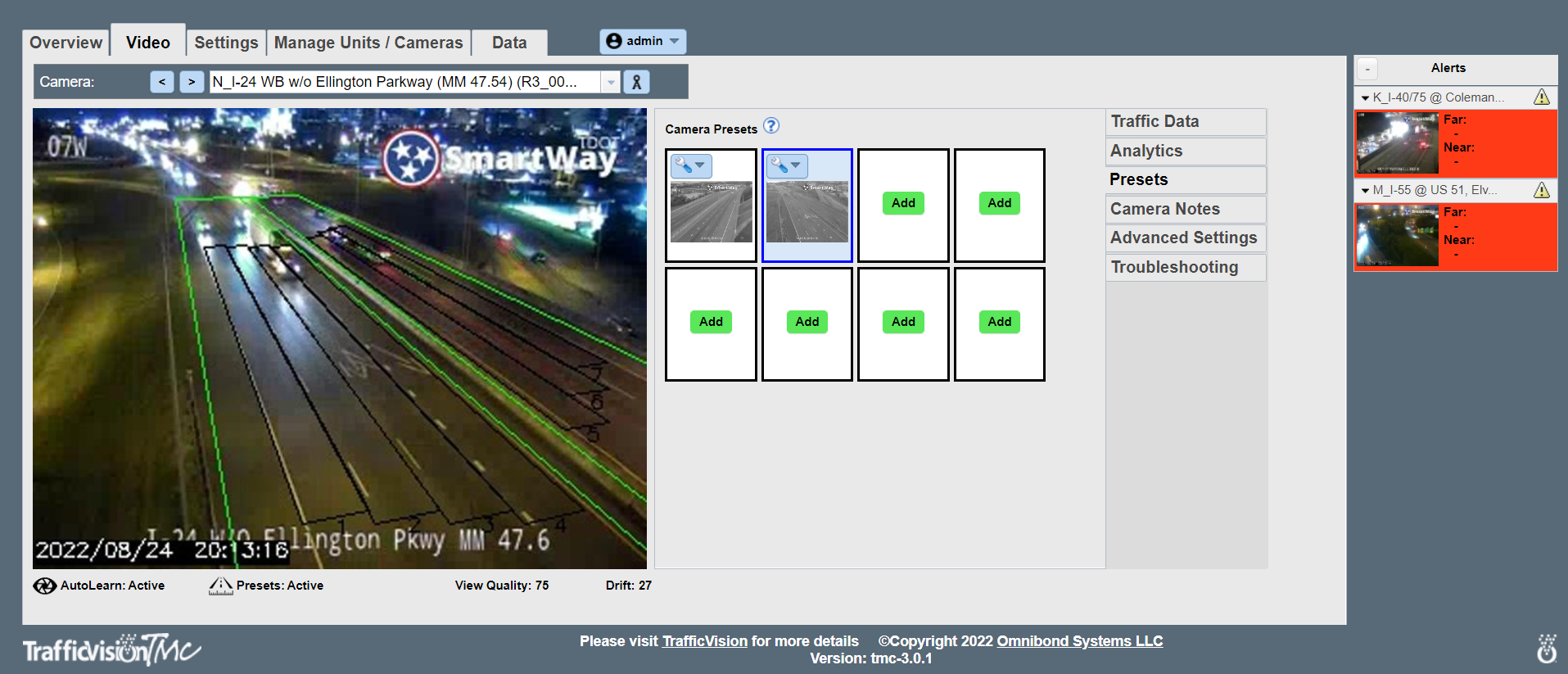
Preset controls are located beneath the video display in the Video tab. In the following example, the selected camera in the Video tab has 2 presets:
Managing Presets
Managing presets includes the following tasks:
- Adding a Preset
- Viewing/Changing the Details of an Existing Preset
- Deleting an Existing Preset
Adding a Preset
To add a preset, follow the Steps outlined in Calibrating A Camera section.
Viewing/Changing the Details of an Existing Preset
To view or change the details of an existing preset:
- Select the Video tab.
- Select the desired camera.
To change the selected camera, click the down arrow in the blue selection box above the video picture. Select a camera.
- Select the Presets subtab.
- Click the Edit Preset button and select Edit from the pulldown menu.
The Calibrate Preset window displays all calibration details for the selected preset, including:- Parameter entries for travel lanes and incident detection zones
- Grayscale picture with superimposed point-to-point line markers for travel lanes and known lengths.
- Make any desired changes to the calibration details. This may include:
Entering new parameters
- Adjusting/moving line points on the grayscale picture.
- When you finish adjusting these dimensions, click the Refresh View button to view the updated extended detection zones overlay lines.
- When you are finished making changes, click the SAVE button.
Deleting an Existing Preset
To delete an existing preset:
- Select the Video tab.
- Select the Presets subtab.
- Select the desired camera.
To change the selected camera, click the down arrow in the blue selection box above the video picture. When the list displays, select a camera.
- Click the Edit Preset button and select Delete from the pulldown menu.
- Click Confirm to delete the preset.